
USING THE TRANSFER QUEUE
How to use this PDS page: Use the Transfer Queue to monitor and accept new transfers into your program. Transferring a participant is a supervisor function; only staff with supervisor level rights or higher in PDS may transfer participants.
Why this information is important: Continuity of HFM services is key to successful work with young families. When a family moves from one program catchment area to another, the sending program can help facilitate a smooth transfer of the participant’s services and records to the new program.
HFM policies related to this section: Service Transitions Policy
Step-by-Step Instructions
Fields with an asterisk (*) are required.
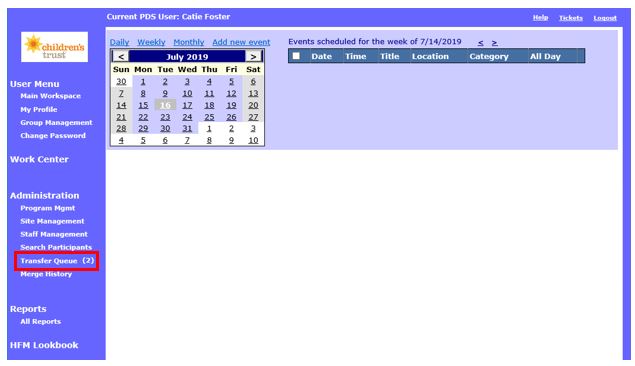
1. In the main workspace, click on Transfer Queue at the far left side of the screen to access the list of participants currently waiting to be transferred to your site. The number is parenthesis is the number of participants waiting to be transferred. In the example below, there are two participants waiting to be transferred.
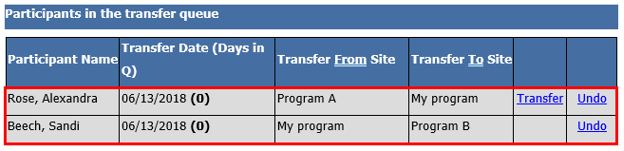
2. You should see a list of participants in the transfer queue. The transfer queue shows:
2.1 Programs see both participants transferring out of and into their programs. The example below shows how the transfer queue looks for a program that is sending and receiving participants. Alexandra Rose is transferring from Program A to your program. Sandi Beech is transferring from your program to site B.
3. Click Transfer next to the name of the participant you want to receive into your program.

4. Click Undo if you will not receive the participant into your program.

4.1 Programs can use the Undo button if there has been an administrative mistake with a PDS transfers. For example, a participant is transferring from Site A to Site B. When discharging the participant, the Site A coordinator accidentally selected Site C as the participant’s new HFM site. The Site A coordinator can select Undo to remove the participant from the transfer queue.
4.2 When you select Undo, the participant’s discharge record is cleared out of PDS. You must create a new discharge record to re-initiate a transfer to a new HFM site.
5. After clicking Transfer, you will see the Intake Form for Transfer Participants screen. This form is similar to the Intake Form for New Participants screen you complete when a new participant is referred to your program.
5.1 This screen displays the transferred participant’s profile page as maintained by the participant’s former site. The receiving program must now update this page to reflect the participant’s engagement at the new site. As with any new referral to the program, staff must ensure that all information on this form is complete and correct.
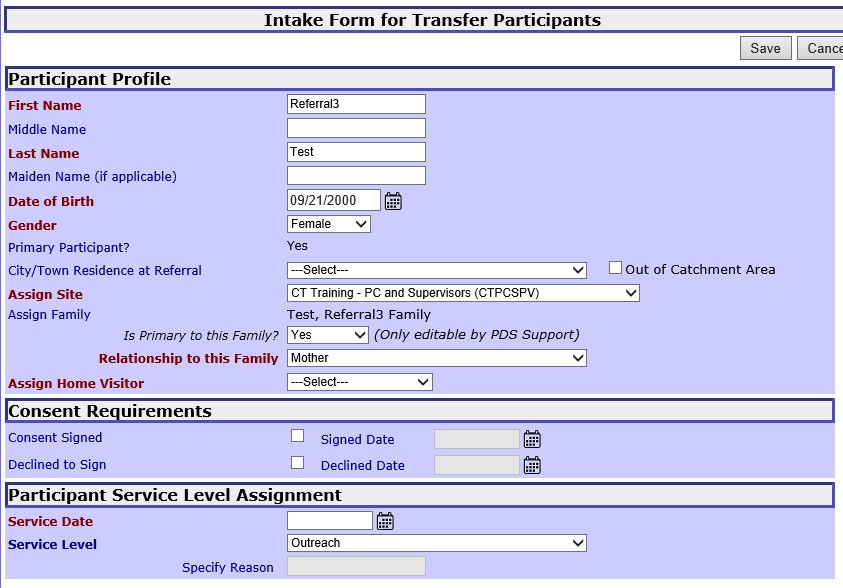
6. Review information in the “Participant Profile” section and edit (if needed) for accuracy and completeness.
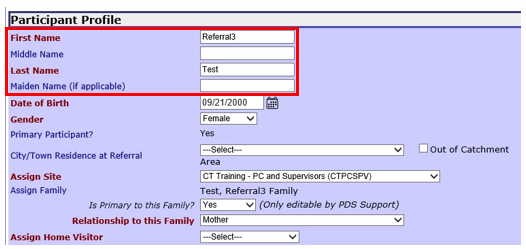
6.1 *First Name: Enter the participant’s first name.
6.2 Middle Name: Enter the participant’s middle name.
6.3 *Last Name: Enter the participant’s last name.
6.4 Maiden Name (if applicable): Enter the participant’s maiden name.
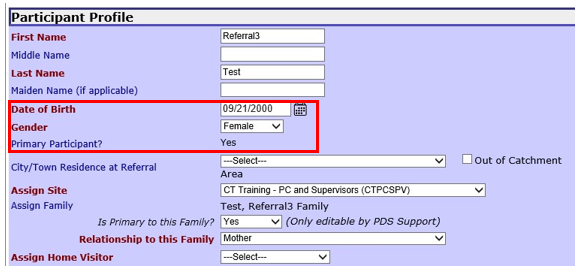
6.5 *Date of Birth: Enter the participant’s date of birth.
6.6 *Gender: Select the gender identified by the participant in the drop down menu:
6.7 Primary Participant: Yes will auto-populate in this field. See Creating a Secondary Participant for more information on documenting co-parents in services.
6.8 *City/Town Residence at Referral: From the dropdown menu, select the city or town where the new participant lives at the time s/he is referred to the program.
6.9 *Assign Site: The site code will populate based on the receiving HFM program selected when the participant was discharged from the sending HFM program.
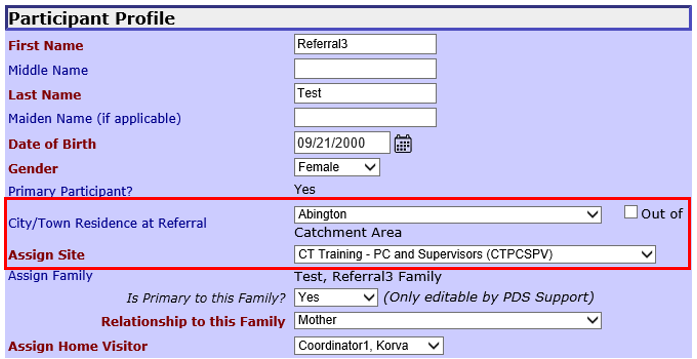
6.10 Assign Family: This will auto-populate with the participant’s family. PDS will automatically assign a family name for the participant and his/her/their family.
6.11 Is Primary to this Family? This field defaults to Yes and cannot be edited. If you need to update the participant’s primary status, please submit a ticket to PDS support.
6.12 *Relationship to this Family: Select the participant’s relationship to the family in the drop down menu:

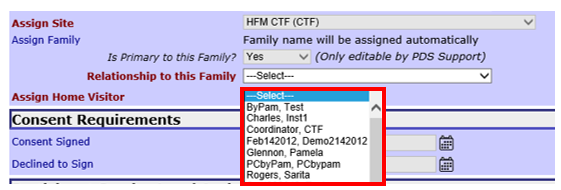
6.13 *Assign Home Visitor: From the dropdown menu, select the staff person who will receive this participant on his/her caseload. This dropdown menu populates with staff working at the site selected in Assign Site. In the example below, the staff in the dropdown menu are from a fictional site called HFM CTF.
7. Enter the following information in the “Consent Requirements” section. In most cases, programs do not have this information at the time they are receiving a transfer participant in PDS. You can transfer a participant without saving information in the “Consent Requirements” section and return later to update the profile. Transfer participants must sign a new consent form with the receiving program even if they signed a consent form at the sending program.
7.1 Consent signed: Check the box if the participant signed the HFM consent form.
7.1.1 Signed date: Enter the date that the participant signed the HFM consent form. This field is required if you checked the Consent Signed box.

7.2 Declined to sign: Check the box if the participant declined to sign the HFM consent form.
7.2.1 Declined date: Enter the date that the participant signed the HFM consent form.

7.3 You may check either the Consent Signed or Declined to Sign box; you cannot check both. When one box is checked, the other box is grayed out and inactive.
7.4 If Consent Signed was checked off, the current program staff will be able to view all records created/maintained by prior program(s) where the transferred participant received services. If Declined to sign was checked off, the current program staff cannot view any records created/maintained by prior program(s) but can still enroll the participant in services.
8. Enter information in the “Participant Service Level Assignment” section.
8.1 *Service Date: Enter the date the referral was received.
8.2 Service Level: Leave this drop down menu as Outreach—every participant’s first service level at referral should be Outreach, unless the participant self-referred.
8.2.1 Specify Reason: Please do not enter any data here.

9. Enter information in the “Participant Referral” section.
9.1 *Referral Date: Enter the date you received the referral, not the date you enter the referral into PDS. Ideally referrals are entered into PDS as soon as they are received.
9.2 Date of First Contact/Enrollment: Leave this field blank until you have contacted the participant. Upon first contact with the participant via phone or face-to-face interaction, whichever happens first, enter the date of that contact here. See the Creating a Referral section of this manual for more information on completing this field.
Important note for participants who self-refer: If the participant was a self-referral do not enter the date of first contact at the time of creating the participant. The contact log must be updated before a date of first contact can be entered. Please see Using the Contact Log for instructions on making contact log entries.
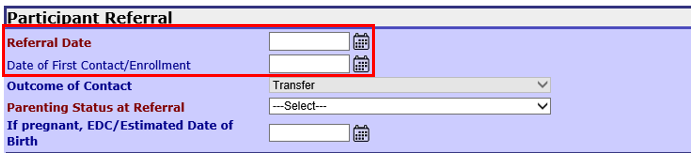
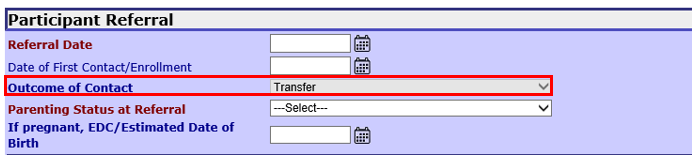
9.3 Outcome of Contact: This field defaults to Transfer for participants who are being received into a program from the transfer queue.
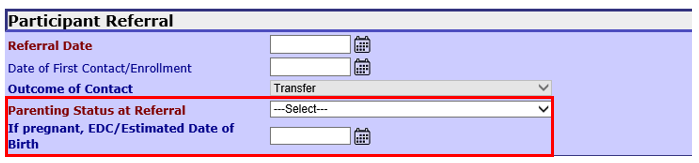
9.4 *Parenting Status at Referral: Select the appropriate response based on the participant’s parenting status:
9.5 If pregnant, EDC/Estimated Date of Birth: Enter the estimated date of birth for the baby if the participant was pregnant/expecting to become a father at the time of referral. If the child has been born at the time of referral, this can be left blank.
10. Save: Click to save the participant’s new record.
11. Cancel: Select to exit the participant record without saving.

Using the Transfer Queue (Sept 2019)
©2019 MA Children's Trust