
CREATING GROUP ACTIVITIES
How to use this PDS page: Document group services offered by your Healthy Families Massachusetts (HFM) program. Managing and documenting group activities is a function limited to staff with access to all participant records. Participants can be assigned to groups once the group activity has been created. See Assigning Participants to Groups for additional information.
Why this information is important: Healthy Families provides participants with opportunities for both individual services and groups. Maintaining accurate records helps HFM programs track participant engagement with group services.
HFM policies related to this PDS section: Group Services Policy
Step-by-Step instructions
Fields with an asterisk (*) are required.
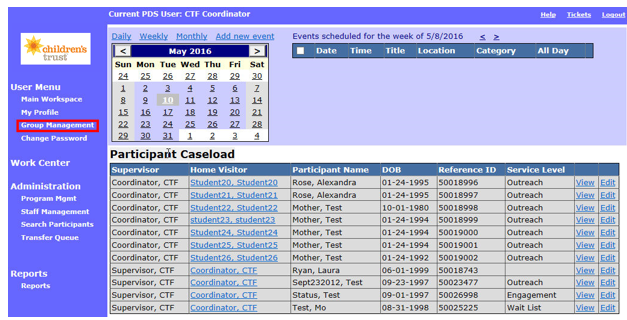
1. To create a Group Activity, click Group Management on the left-side menu to access your program’s group history.
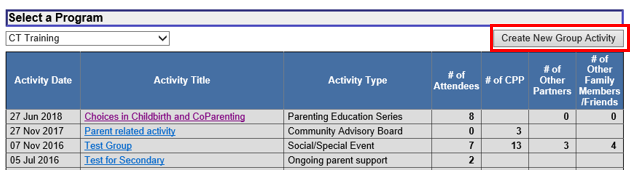
2 Click Create New Group Activity to access a new group activity record.
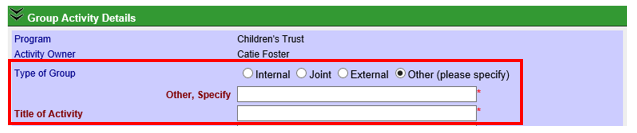
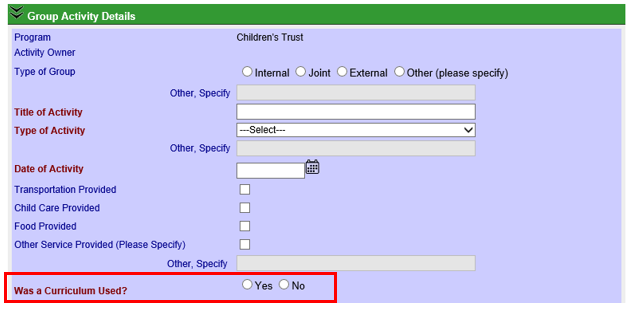
3 Enter information in the “Group Activity Details” section.
3.1 Click the green button with arrows to expand the “Group Activity Details” section. Once you expand the Group Activity Details section, you will see the fields you’ll need to complete.

3.2 Program: This field with auto-populate based on your program.
3.3 Activity Owner: This field will auto-populate based after you save the group activity. This field will default to the individual who creates the group activity.

3.4 Type of Group: Select the type of group you are creating.
Internal: Select this option if you are creating a group activity that will be planned and hosted by your own HFM program (i.e. no outside programs are involved in planning and hosting the event).
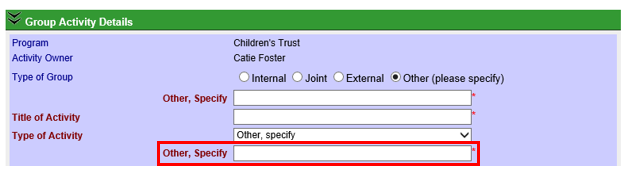
3.5 Other, Specify: Enter the type of group if you selected Other (please specify) above. This is required only if you selected Other (please specify).
3.6 * Title of Activity: Enter the title of the group, e.g. Back-to- School, Harvest Festival or Fun in the Park.
3.7 * Type of Activity: Select the type of activity from the drop down menu.
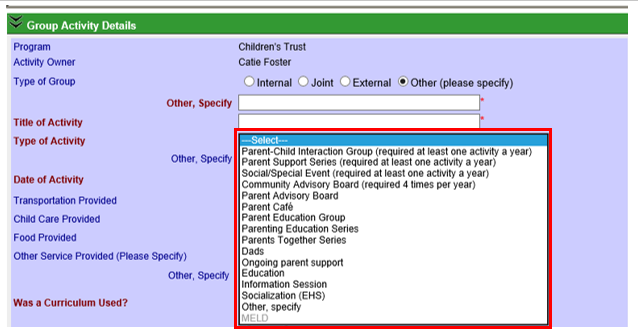
3.8 Other, Specify: Enter the type of group if you selected Other, specify above. This is required only if you selected Other, specify.
3.9 * Date of Activity: Enter the date the activity happened. If documenting a group series each occurrence of the group in the series will have to be documented separately. 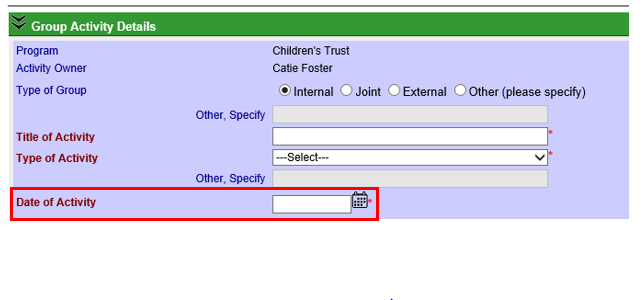
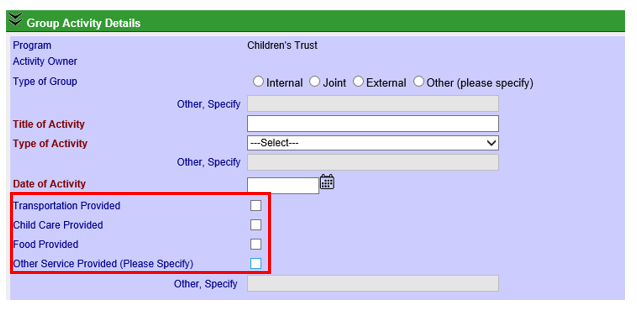
3.10 Services provided: Select the service(s) offered to participants who attend the event. Select all that apply to your event.
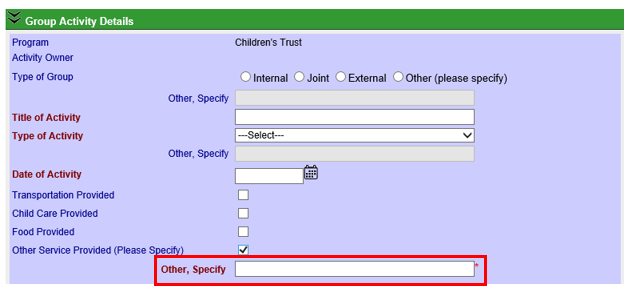
3.11 Other, Specify: Enter the type of service offered if you selected Other, specify above. This is required only if you selected Other, specify.
3.12 * Was curriculum used? Select yes or no to indicate if this group activity used a curriculum.
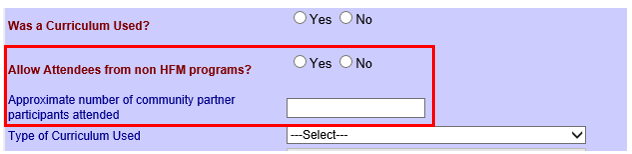
3.13 * Allow attendees from non-HFM programs?: Indicate if attendees at the group session participants that were not active or graduates of HFM. For example, were parents in attendance from other partner agencies such as Early Intervention, Young Parent Support or Family Centers?
3.14 Approximate number of community partner participants attended: Enter the approximate number of community partner participants who attended the event. Community partner participants are parents in attendance from other partner agencies. Enter this information after the event occurs.
3.15 Type of curriculum used: Select the type of curriculum used from the dropdown. Curriculum can be standardized set of curriculum e.g. Partners for a Healthy Baby, other parts of materials that have been taken from curriculum, as well as information downloaded from reliable internet sources. If multiple curricula were used, choose the item that was the largest focus of the group.
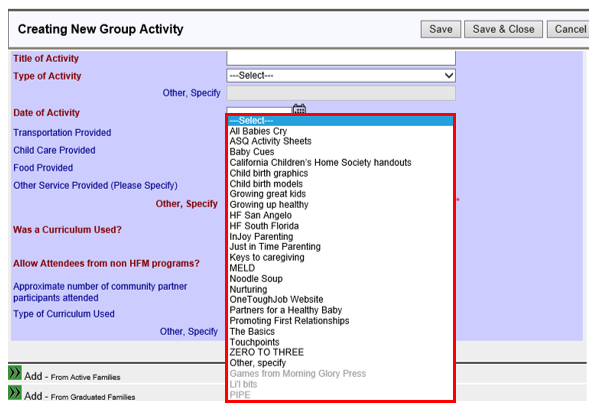
3.16: Other, specify: Enter the type of curriculum used if you selected Other, specify above. This is required only if you selected Other, specify.
4. Save and Close: Once required fields are completed select Save and Close to save the information and go back to the group activity workspace.
5. Save: Select the to save the information and return to editing the Group Activity.
6 Cancel: Select the Cancel button to not save your work.

Creating Group Activities (Sept 2019)
©2019 MA Children's Trust