
ASSIGNING PARTICIPANTS TO GROUPS
How to use this PDS section: Managing and documenting group activities is a function limited to staff with access to all participant records. Assign participants to groups once the group activity has been created. See Creating Group Activities for additional information.
Why this information is important: Healthy Families provides participants with opportunities for both individual services and groups.
HFM policies relevant to this PDS section: Group Services Policy
Step-by-Step Instructions
Fields with an asterisk (*) are required.
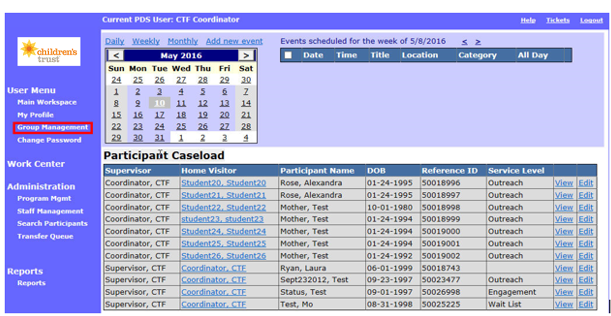
1. To view a Group Activity, click the Group Management link on the left-side menu to access your program’s group history.
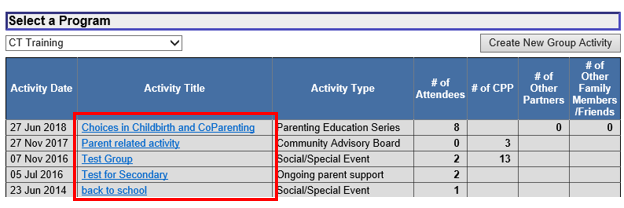
2. You should see all the group activities your program has entered in PDS. Choose the group activity where you want to assign participants.
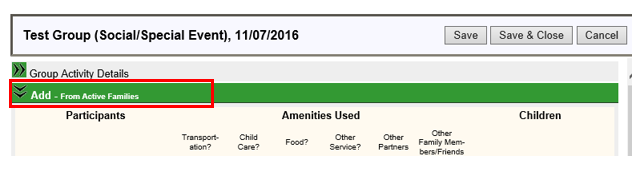
3. Click the green ribbon called Add - From Active Families to add participants from families currently enrolled in the program.
4.The Add - From Active Families section will expand to display all active families assigned to your HFM site.
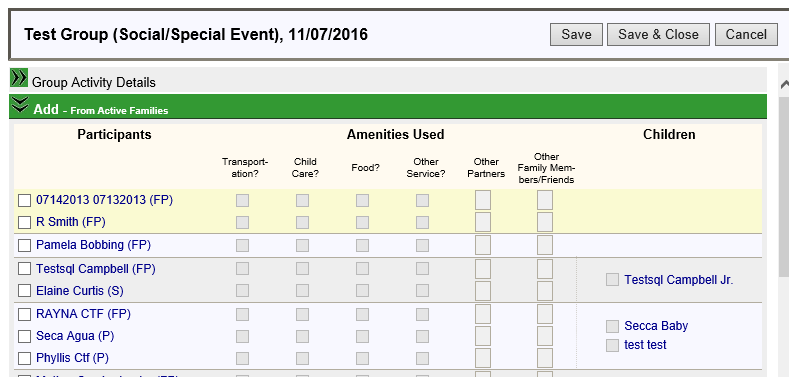
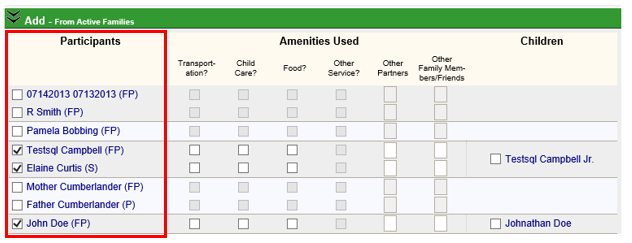
5. Add participants: Select group activity participants in the Participants column by clicking the check box next to their names.
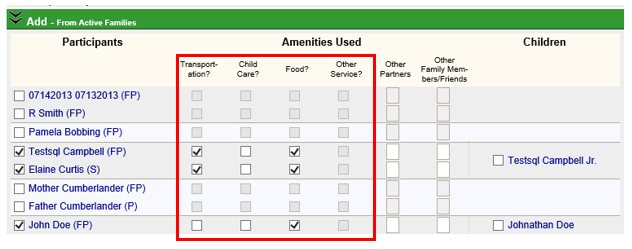
6. Add amenities used: Select the amenities used by participants, other partner(s) or family members/friends of the participant in the Amenities Used column. The amenity checkboxes are only active if you indicated that the group activity included those amenities when you created the event.
Select from the following amenities:
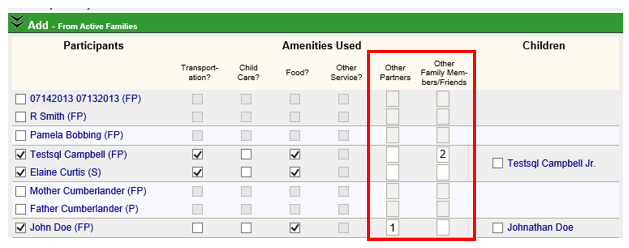
7. Add other partners and other family members/friends: Enter the number of other partners and family members/friends who attended the event in the Other Partners and Other Family Members/Friends columns. These check boxes only become active after you assign a participant to the event.
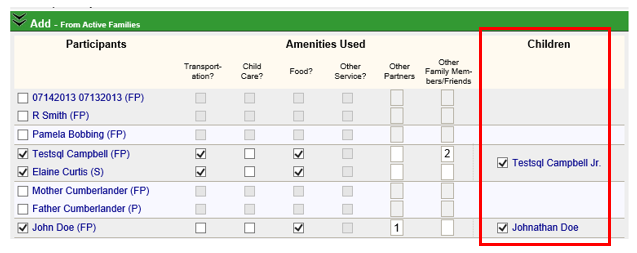
8. Add children: Select children in the Children column by clicking the check box next to their names. Only Healthy Families Massachusetts target children will display in this column. Other children in the family in attendance should be counted under the Other Family Members/Friends column.
9. Add graduated families: Click the green ribbon called Add - From Graduated Families to add participants from families who have graduated from your HFM. 
9.1 Follow steps 4-8 to assign graduated families, amenities used, other partner and family members/friends, and children to the group activity.
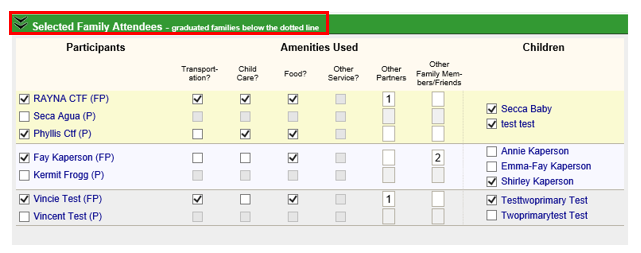
10. Edit participants, amenities, and children: If you need to edit group activity participants, you may view only a list of participants currently assigned to the group activity. Click the green ribbon called Selected Family Attendees.
10.1 The section will expand to show you a list of participants who are currently assigned to the group activity.
10.2 Follow steps 4-8 to make any edits to participants, amenities used, other partners, other family members/friends, or children.
11. Save: Click to save the information.
12. Save and Close: Click to save the information and return to the Group Management work space.
13. Cancel: Click to leave the Group Activity page without saving.

Assigning Participants to Groups (Sept 2019)
©2019 MA Children's Trust